How to Access Your Class
What is Canvas?
All of our classes at House of Humane Letters are conducted through Canvas, which is a “Learning Management System.” Each class has its own Canvas page where students can access links for the live sessions, watch the recorded classes, participate in discussion, view the syllabus, and contact the instructors.
To get the most out of class and to ensure everyone is on the same page, please read these instructions carefully.
Free Canvas Account
In order to use Canvas and access your class, you must have a Free Canvas account. It is entirely a personal preference if you would rather your student use your email address as a login or their own personal address – as long as you understand that each individual student must have their own account. If you have a student enrolled using the sibling discount, that sibling must have their own Canvas account in order to receive a grade for the class.
Please Note: We are limited in our ability to make changes to Canvas accounts. We are not able to send password resets or account verification emails. Canvas technical support issues will need to be sent to Canvas Instructure.
Make sure before you create an account to click the join link. Otherwise you will be asked for the name of the institution. House of Humane Letters will not come up in the search. If you have two students with different Canvas accounts taking different HHL classes, make sure they are signed in to the correct accounts when adding their class. They will be using the same join link to enroll.
It is important to note that you must add the class to your account in order to be in the class. The class will not automatically appear in your dashboard after you have registered.
Adding on a Mobile Device vs. Adding on a Computer
Over time, we have found that adding a class is easier on a desktop computer versus a mobile device. Once you are signed up, you can use the app with no problem, but adding can be potentially problematic on a mobile device.
Finding Your Join Link/How to Add a Class on Canvas
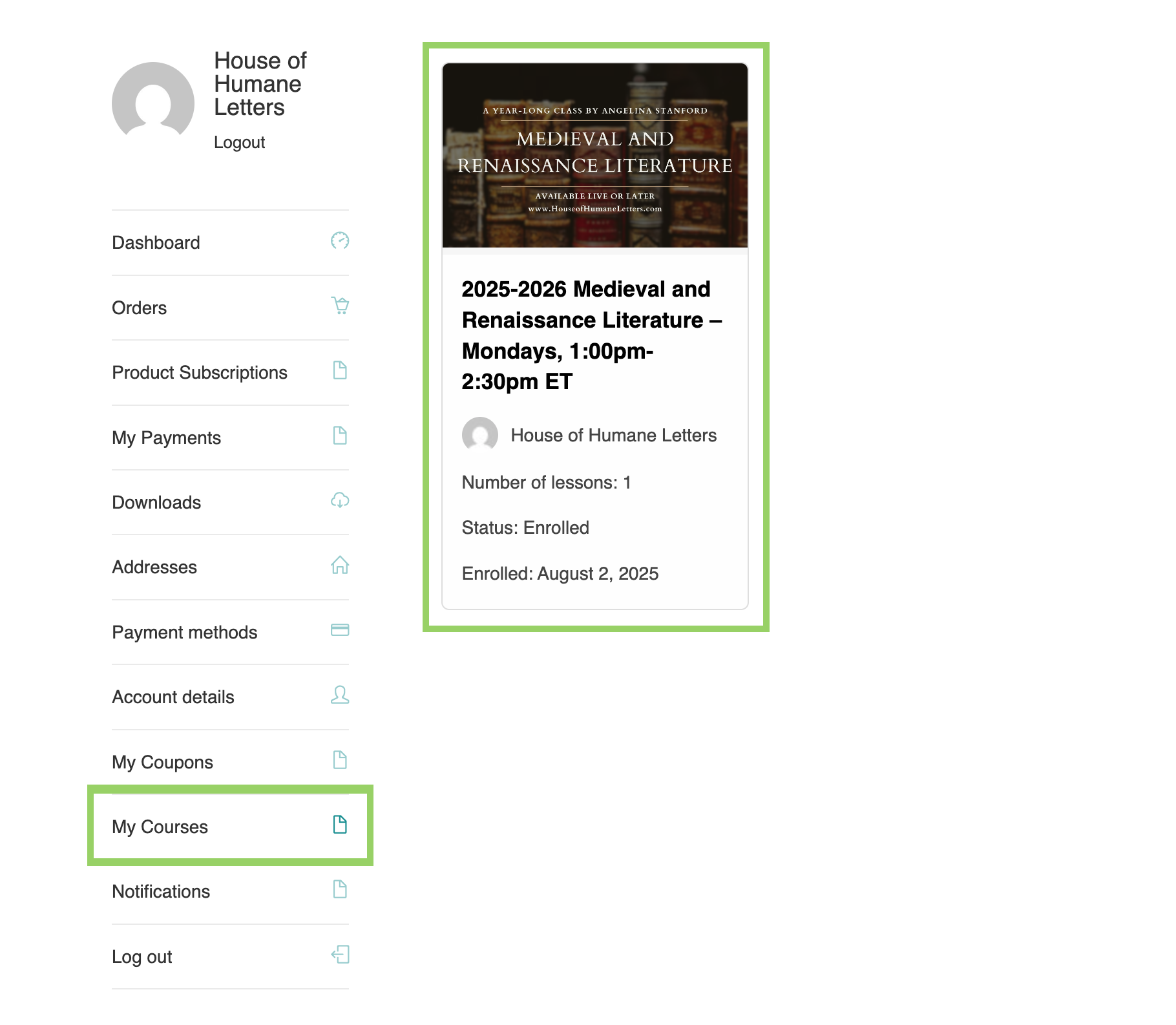
In your House of Humane Letters account page, click “My Courses” to see a list of the year-long courses you have registered for. Click on each course to access the Canvas join link needed to enroll.
The course page will display the class meet time, a copy of the academic calendar for 2025-2026, a booklist, and down at the bottom of the page, you will find a section on adding the class on Canvas. There will be a join button below.
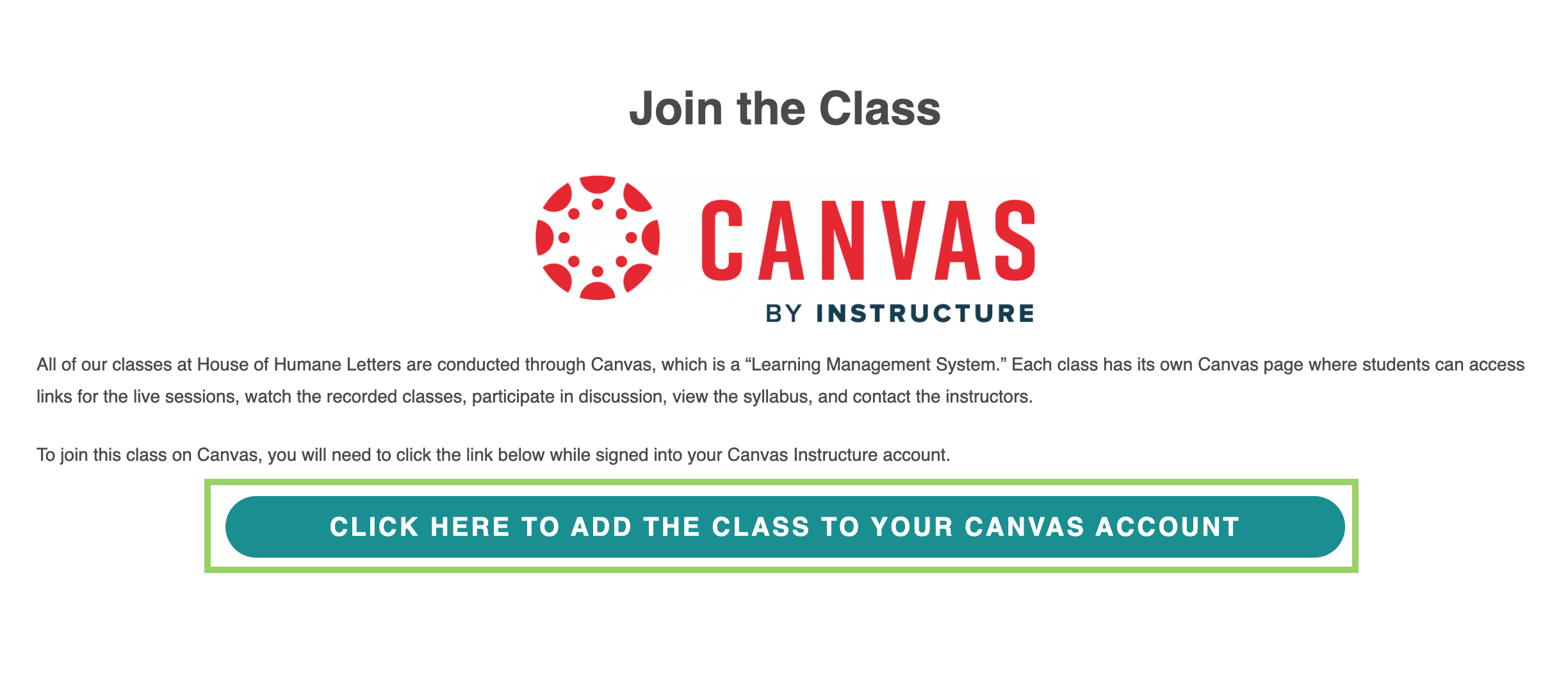
Clicking the join button should take you to one of two screens:
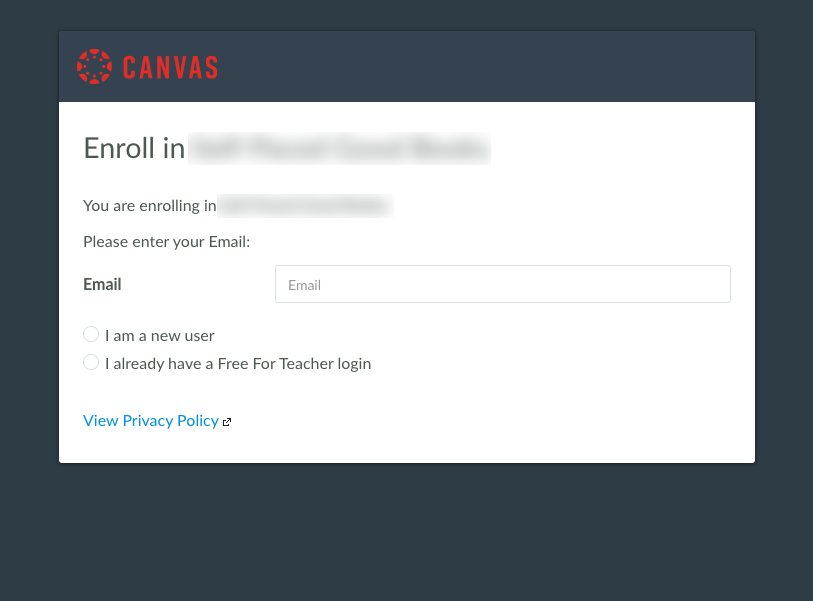
The above screen will appear if you are not signed into your Canvas account, or you have not yet created one.
If you need to create an account, type your email address in the provided space, select “I am a new user,” and proceed with the steps from there. The system will likely send a verification email to any new account created, so be on the lookout for that.
If you have your own Canvas Instructure account already, type the email address associated with your account, select “I already have a Free For Teacher login,” and proceed with the steps from there.

The above screen will appear if you are already logged into your Canvas account. The next step is to click “Enroll in Course,” and you are in!
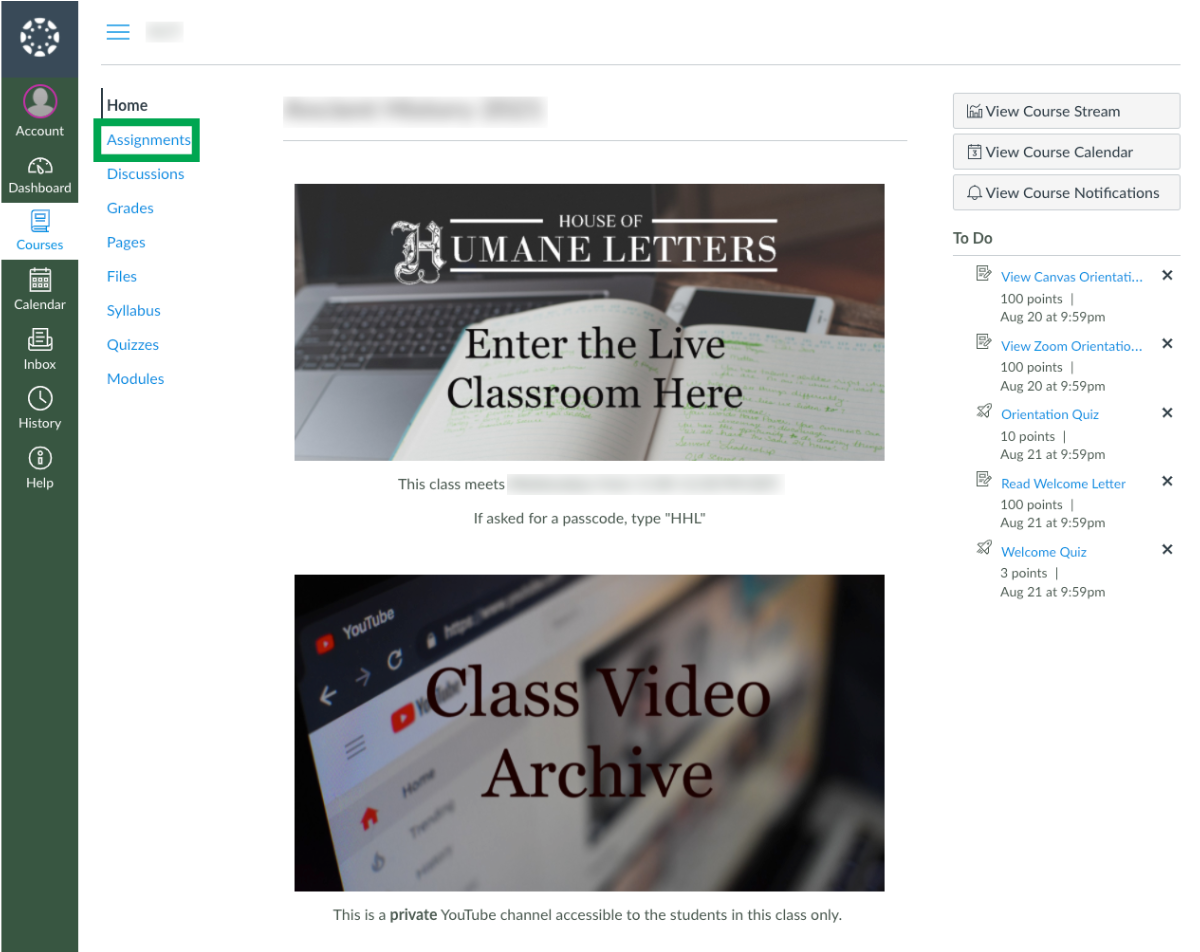
You will ultimately land on the home page below. You are officially enrolled in the course, and can click the button “Go to the Course” to explore the class Canvas page.
Once You Are Enrolled
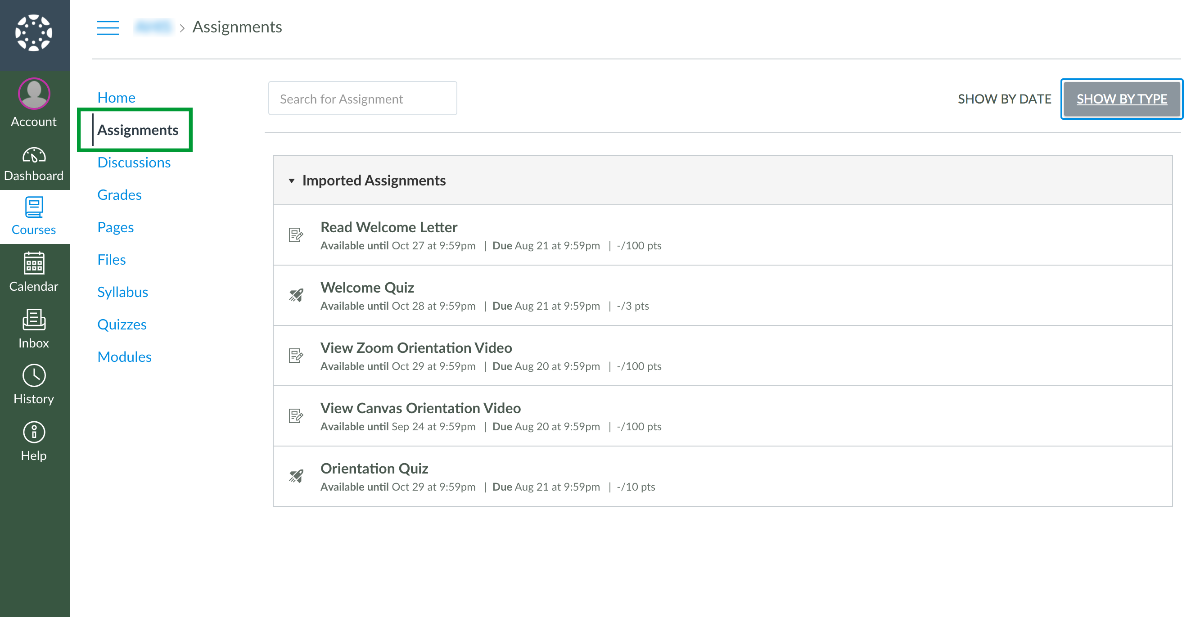
Students in a year-long class will have a few assignments waiting for them when they join.
Start by reading the Welcome Letter and taking the subsequent quiz. After that, the Zoom and Canvas orientation videos will teach you how HHL utilizes these tools. Once you’ve watched them, take the Orientation Quiz. These assignments will hopefully answer a lot of your questions about the way classes will be run.
PLEASE TAKE NOTE: Once you have joined the class on Canvas, it would be beneficial to bookmark the link on your web browser for easy access.
Write to [email protected] with any questions you have about Canvas that may not have been addressed here.